
Author
Pixels Mark
Release
Intensity
20 MIN READ
Reading Time: 14 minutes
To create a favicon, upload a square PNG logo at 512x512 pixels to a favicon generator, download the output package containing ICO, SVG, and PNG files in all required sizes, then add the provided HTML code to your site's head section. WordPress, Shopify, Webflow, Wix, and Squarespace all have a built-in favicon field that handles the code automatically. The process usually takes only a few minutes.
- Upload a square PNG at 512x512 pixels or larger for the sharpest output at every size.
- A complete favicon setup in 2026 requires three file types: ICO for legacy browsers, SVG for modern browsers, and PNG for iOS and Android.
- WordPress, Shopify, Webflow, Wix, and Squarespace all have a built-in favicon upload field that handles the HTML automatically.
- Always preview your favicon at actual 16x16 pixel size before publishing. Designs that look good at 200 pixels often become unreadable at the size that actually appears in browser tabs.
- A missing favicon makes your website appear unfinished in browser tabs and Google mobile search results.
Introduction
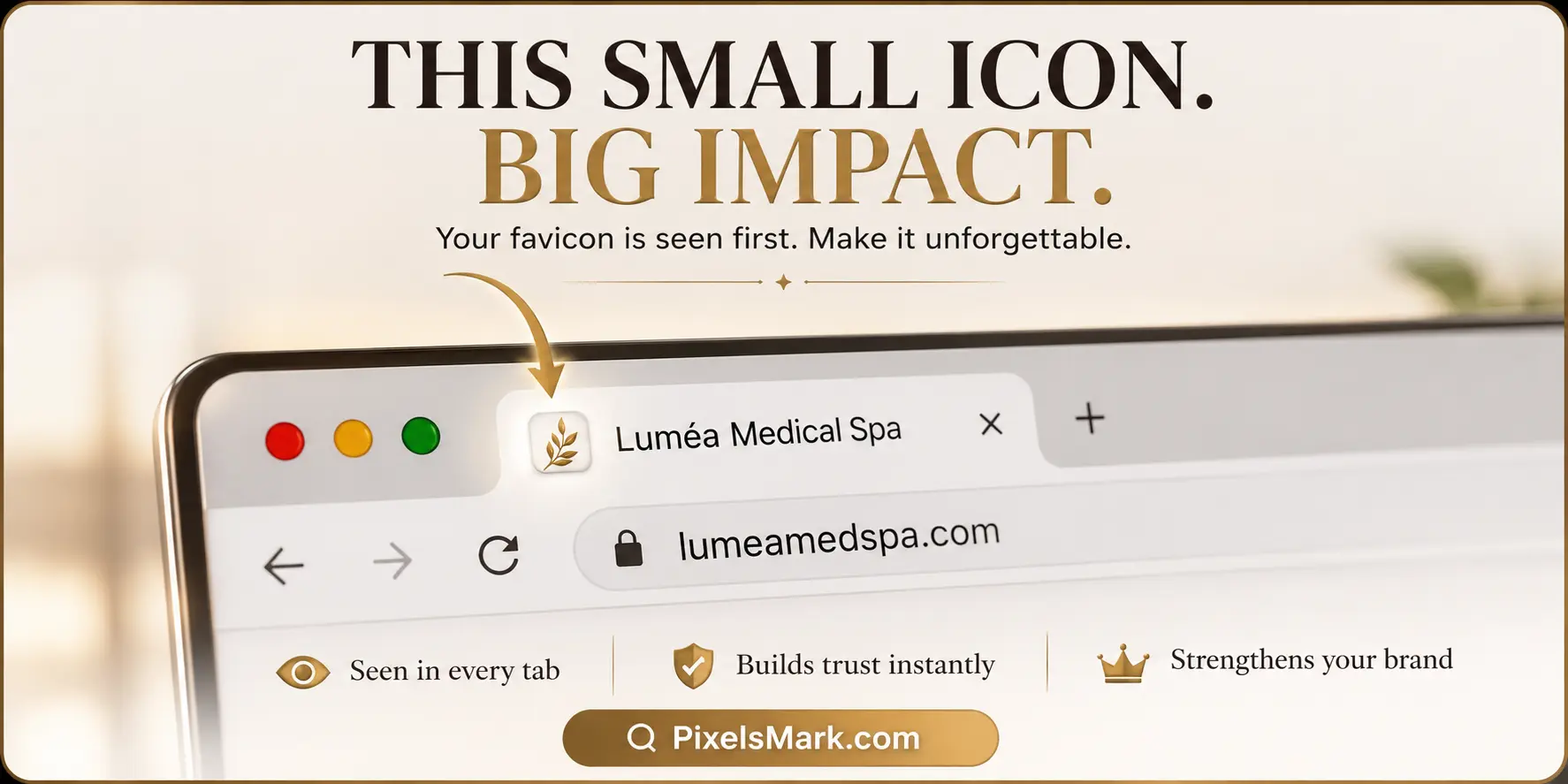
A favicon is one of the smallest design decisions on your website and one of the most visible. It appears in browser tabs, bookmarks, Google search results, and mobile home screens. When a visitor has thirty tabs open, your favicon is the only thing identifying your site.
Despite how straightforward the setup is, a large number of websites are still running without one. The result is a blank or generic icon that signals an unfinished site to every visitor who opens a new tab or saves your page.
This guide covers everything you need to know: what a favicon is, which formats and sizes to use, how to design one that actually works at small sizes, how to add it to every major platform, and how to fix it when something goes wrong.
What Is a Favicon?
A favicon, short for favorite icon, is a small square image associated with your website. If you're new to favicons, start with our guide to what a favicon is. Browsers display it in tabs, bookmarks, and history.
The name comes from Internet Explorer 5, which introduced the format in 1999 and stored the icon in the browser's Favorites panel. The concept has remained the same ever since, though the formats, sizes, and display contexts have expanded significantly.
At its smallest, a favicon is 16x16 pixels. That is 256 pixels of space to communicate your brand. A successful favicon is almost always a simplification, not a reproduction.
Why Every Website Needs a Favicon
- Brand recognition at a glance. When someone returns to your site through a bookmarks bar or a crowded tab bar, they identify it by icon before they read any text.
- Trust and professionalism. A missing favicon signals an incomplete website. A custom favicon communicates that the site is maintained and cared for.
- Google search visibility. Google displays favicons beside URLs in mobile search results. A recognizable icon makes your listing visually distinct from competitors.
- Mobile home screen presence. When a user saves your site to their iPhone or Android home screen, the device uses your favicon as the app icon.
- Browser tab identification. Users with many tabs open navigate primarily by icon. The favicon is the only persistent visual identifier.
Where Favicons Appear
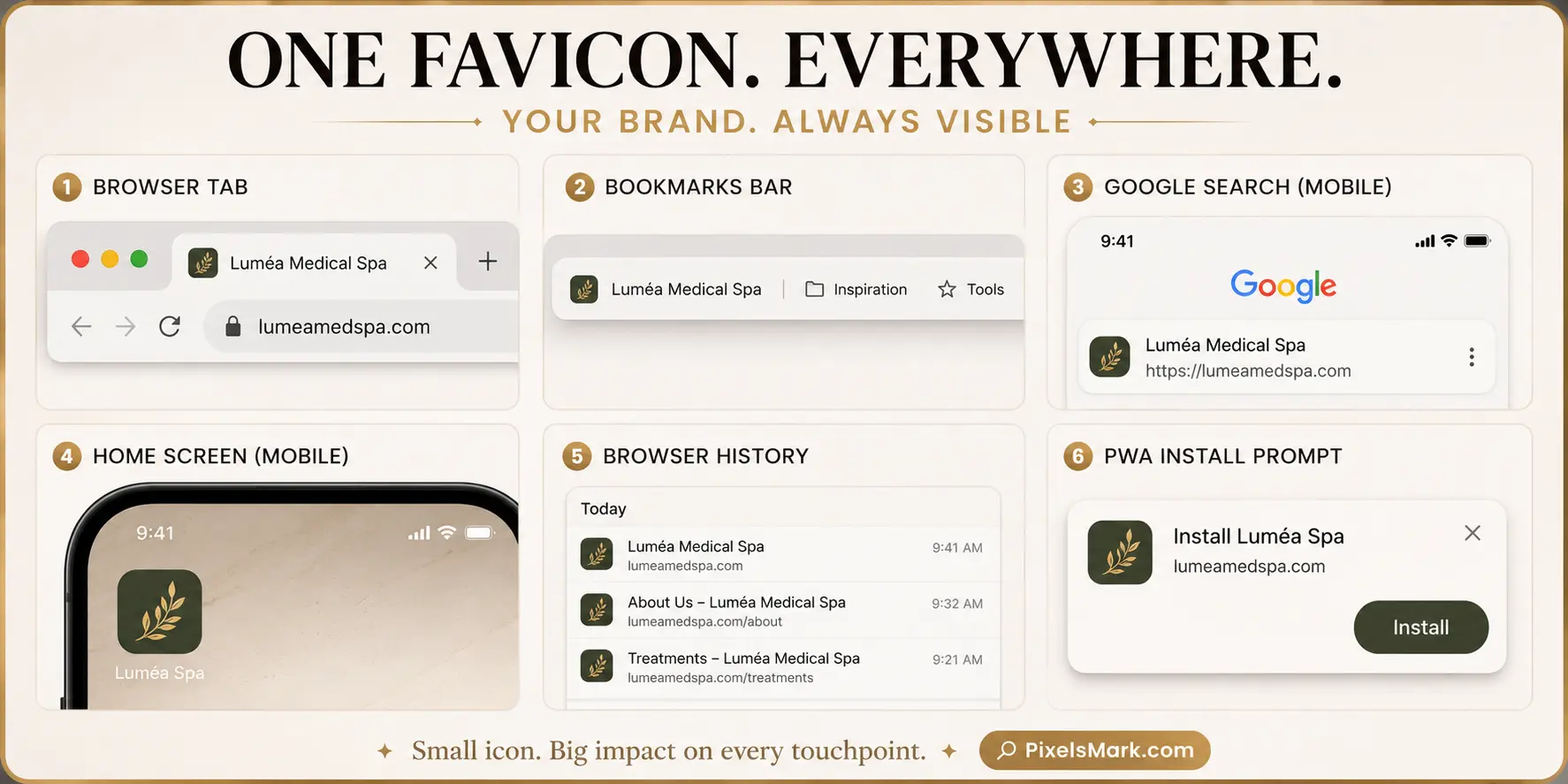
- Browser tabs. Chrome, Firefox, Edge, and Safari all display the favicon at the far left of each tab. At this size, around 16x16 pixels in practice, only the simplest marks remain legible.
- Bookmarks. When a visitor saves your site, your favicon appears beside the page title. Bookmarked sites are visited repeatedly, so this is a long-term brand touchpoint.
- Google search results. On mobile, Google shows your favicon beside your URL for every search listing. This has been standard behavior since 2019.
- Mobile home screen shortcuts. When a user adds your site to their iPhone or Android home screen, the device creates an icon using your Apple Touch Icon file at 180x180 pixels.
- Browser history. Your favicon appears beside your site name in a user's browsing history.
- Progressive Web Apps. If your site is installable as a PWA, the icons defined in your web manifest appear throughout the install flow and on the device launcher.
Recommended Favicon Sizes
In 2026, five files cover every browser, platform, and device in active use.
| File | Dimensions | Format | Where It Appears |
|---|---|---|---|
| favicon.ico | 16x16, 32x32, 48x48 (bundled) | ICO | Browser tabs, legacy browsers, root fallback |
| favicon.svg | Scalable | SVG | Chrome, Firefox, Edge tabs (preferred) |
| apple-touch-icon.png | 180x180 | PNG | iOS home screen shortcut |
| android-chrome-192x192.png | 192x192 | PNG | Android home screen, PWA launcher |
| android-chrome-512x512.png | 512x512 | PNG | PWA install prompt, splash screen |
- favicon.ico is a container format that bundles 16x16, 32x32, and 48x48 raster images into a single file. Browsers automatically look for this file at your domain root even when no HTML tag references it.
- favicon.svg is the preferred format for modern browsers. It scales to any size without quality loss and can include a prefers-color-scheme media query to switch between light and dark versions.
- apple-touch-icon.png at 180x180 is required by iOS. Apple devices do not support transparency at this use case. Use a solid background color that matches your brand.
- 192x192 and 512x512 PNG files are referenced in your web manifest and used for Android home screen icons and PWA install flows respectively.
PNG vs ICO vs SVG
All three formats play a role in a complete favicon setup. They are not interchangeable.
| Feature | ICO | PNG | SVG |
|---|---|---|---|
| Browser Support | All including legacy | All modern browsers | Chrome, Firefox, Edge, Safari 14+ |
| Quality | Raster (fixed resolution) | Raster (fixed resolution) | Vector (infinite resolution) |
| Transparency | Yes | Yes | Yes |
| Scalability | No | No | Yes |
| Dark Mode Support | No | No | Yes (via CSS media query) |
| Multi-size Container | Yes (16, 32, 48 in one file) | No | No |
| Required For | Legacy fallback, root | Apple Touch Icon, PWA manifest | Modern browser tab icon |
| Recommended Usage | Always include at domain root | Named sizes in HTML head | Primary icon for modern browsers |
ICO remains necessary despite its age. Browsers automatically check for favicon.ico at your domain root without any HTML tag.
PNG is the practical format for most explicit size references in your HTML. It supports transparency and is required for Apple Touch Icons and web manifest files.
SVG is the most capable format for modern browsers. It can contain a prefers-color-scheme media query that switches between a light and dark version based on the user's settings.
For a deeper explanation of how PNG and SVG differ as formats, the PixelsMark PNG vs SVG vs JPG guide covers the format differences in more detail.
Can I Use My Logo as a Favicon?
The short answer is: sometimes, with simplification.
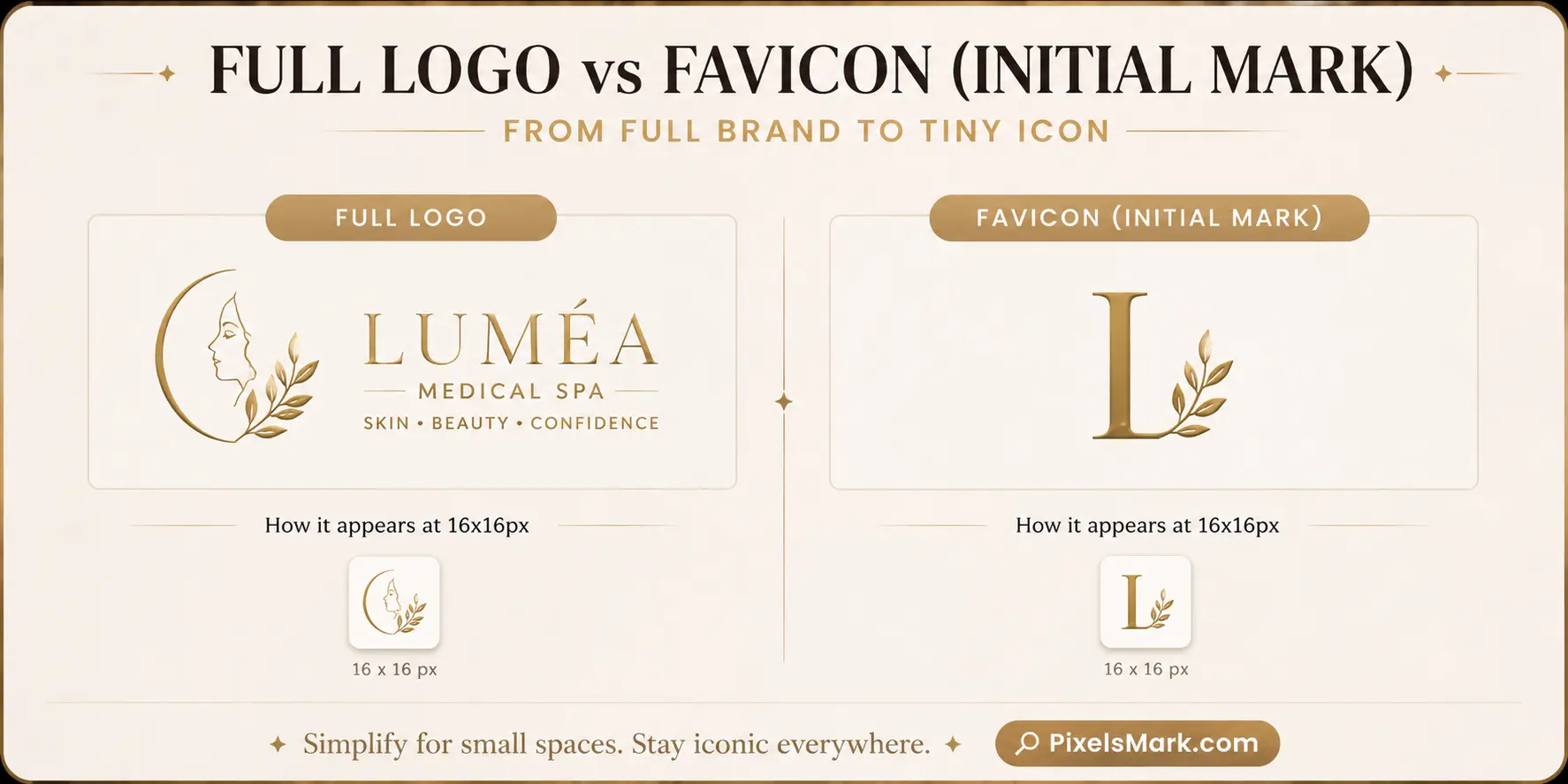
Whether your logo works as a favicon depends on its complexity. A logo that is primarily a geometric mark or a single bold letter often translates directly. A logo with detailed typography, multiple colors, fine lines, or complex illustration almost never works at 16x16 pixels without significant reduction.
What works well: A single initial or letterform in your brand color. A simple geometric shape. A reduced version of a logo's primary mark with secondary elements removed.
What rarely works: Horizontal wordmark logos. Logos with multiple detailed elements. Logos that rely on thin strokes or fine linework.
How to simplify: Start with your full logo and remove every element that is not essential to immediate recognition. Keep the primary mark only. Test the result at exactly 16x16 pixels before considering it finished.
If you do not yet have a logo to work from, the PixelsMark AI Logo Maker generates a complete logo with transparent PNG and SVG exports ready to use as favicon source files.
How to Design a Good Favicon
- Keep it simple. Every element you add competes for the same limited pixels. Effective favicons typically contain one element, not several.
- Use your primary brand color. Even at 16x16 pixels, color is recognizable before shape.
- Maximize contrast. Your favicon appears against browser chrome in light mode, dark mode, and every shade between. Test against both white and dark backgrounds.
- Choose a square composition. All favicon formats require square dimensions. Treat the favicon as a distinct design challenge from your main logo.
- Add appropriate padding. For iOS home screen icons, leaving around 10 percent padding prevents the main element from being clipped by device masks.
- Test at actual size before finalizing. Open a real browser tab and check the result there. The difference between what looks good in a preview and what is legible in a tab is often significant.
- Consider initials over illustrations. A single bold initial in a strong brand color often outperforms any attempt to miniaturize a complex full mark.
How to Create a Favicon Step by Step
- Prepare your source image. Start with a square image at 512x512 pixels or larger. A PNG with a transparent background gives you the most flexibility.
- Upload to the PixelsMark Favicon Generator. Go to pixelsmark.com/favicon-generator and drag your image into the upload area. The generator accepts PNG, JPG, SVG, and ICO input files.
- Preview at small sizes. Before downloading, check the 16x16 and 32x32 previews the generator displays. If the mark loses legibility, simplify your source image and re-upload.
- Download the complete package. The generator produces a ZIP file containing all required files: favicon.ico, favicon.svg, apple-touch-icon.png at 180x180, android-chrome icons, a site.webmanifest file, and ready-to-paste HTML code.
- Install on your site. Place the downloaded files in your site's root directory and paste the provided HTML tags into your head section.
No account required. No watermarks. Processing runs entirely in your browser.
How to Add a Favicon
HTML
Place your favicon files in the root directory of your site. Add the following to the head section of your HTML:
<link rel="icon" type="image/svg+xml" href="/favicon.svg">
<link rel="icon" type="image/png" sizes="32x32" href="/favicon-32x32.png">
<link rel="shortcut icon" href="/favicon.ico">
<link rel="apple-touch-icon" sizes="180x180" href="/apple-touch-icon.png">
<link rel="manifest" href="/site.webmanifest">WordPress
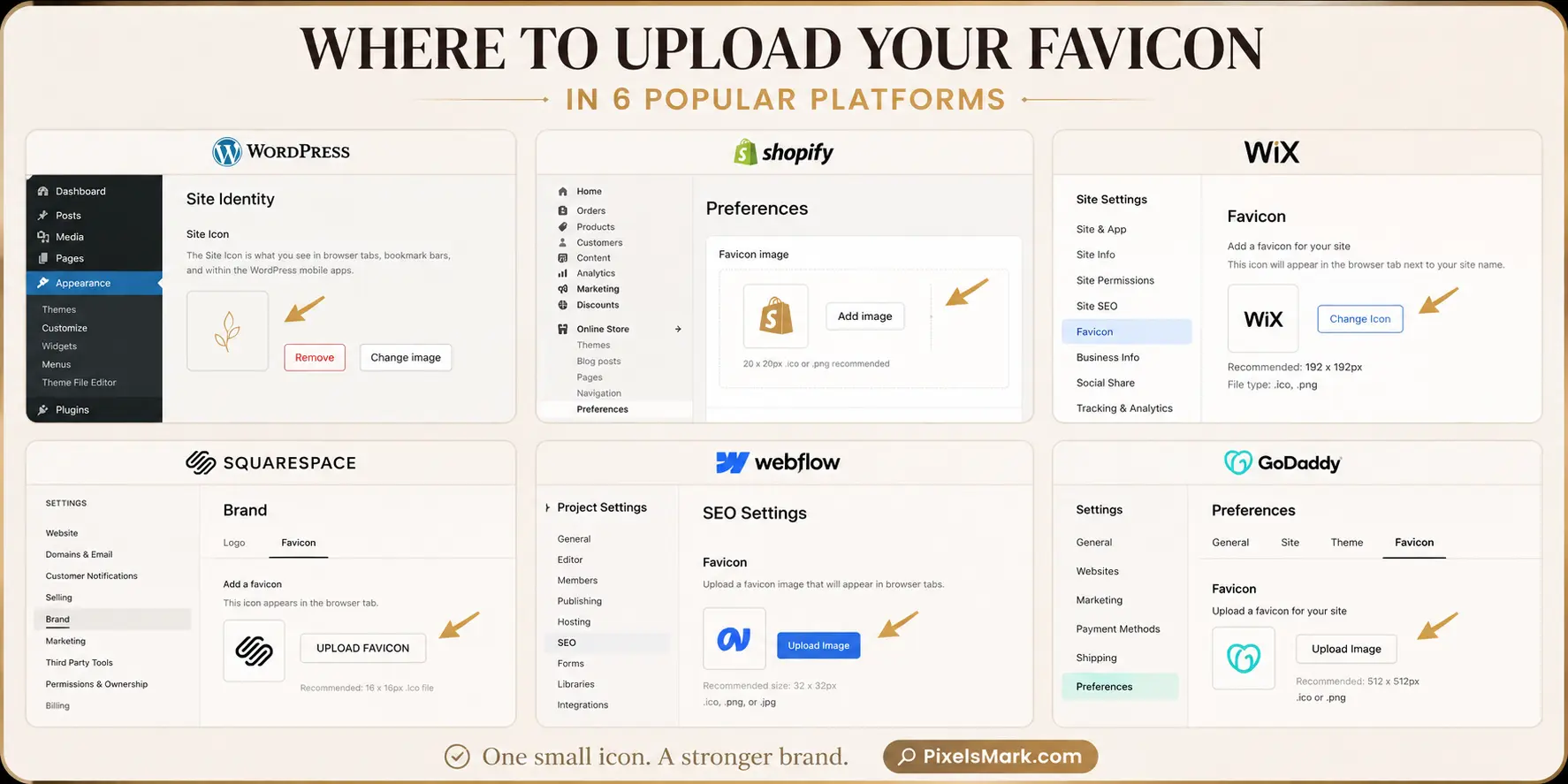
Go to Appearance → Customize → Site Identity and upload your image in the Site Icon field. WordPress handles resizing and adds the correct HTML automatically. Upload a square PNG at 512x512 pixels or larger.
Shopify
Go to Online Store → Themes → Customize, then open Theme Settings and find the Favicon section. Upload a PNG. Creating your source at exactly 32x32 pixels produces the cleanest output. This feature requires the Basic plan or higher.
Wix
Go to Settings → Favicon in the Wix dashboard and click Upload Image. A premium plan with a connected custom domain is required to set a custom favicon.
Squarespace
Go to Design → Browser Icon in the Squarespace editor and upload your image. Squarespace accepts PNG, GIF, and ICO files and recommends a square image at 100x100 pixels or larger.
Webflow
Go to Project Settings → General → Favicon and Touch Icons and upload a square PNG at 512x512 or larger. Webflow generates all required sizes and HTML link tags automatically when you publish.
Common Favicon Mistakes
- Using too much detail. Complex illustrations collapse at favicon sizes. Fix: Simplify to a single element and test at actual size.
- Poor contrast. A favicon with insufficient contrast becomes invisible when browser chrome is a similar tone. Fix: Test against both white and dark backgrounds before publishing.
- Wrong source image size. Uploading a small image means the generator scales it up, producing blurry outputs. Fix: Always start with at least 512x512 pixels.
- Wrong format for the context. Using only a PNG without an ICO fallback means legacy browsers display a broken icon. Fix: Use a generator that produces the complete file set.
- Not testing at 16x16 pixels. The actual browser tab icon is 16 pixels wide. Fix: Open a real browser tab and verify at actual size before publishing.
- Forgetting mobile icons. Skipping the 180x180 Apple Touch Icon and 192x192 Android icon means mobile users get a low-quality screenshot. Fix: Use a generator that produces the full package.
Troubleshooting
- Favicon not showing up at all. The most common cause is browser caching. Open an incognito or private browsing window. If it appears there, perform a hard reload: Ctrl+Shift+R on Windows, Cmd+Shift+R on Mac.
- Favicon showing in some browsers but not others. Include a favicon.ico file at your domain root as a fallback. Browsers check for it automatically without needing an HTML tag.
- Favicon not updating in Google search results. Submit your sitemap in Google Search Console and request indexing for your homepage. Google typically updates favicons within a few days to a few weeks.
- Wrong file path. Verify that the paths in your HTML tags match the actual file locations exactly, including any subdirectory structure.
- Blurry favicon. The source image was too small when uploaded. Re-generate using a source of at least 512x512 pixels.
- iOS home screen icon using a page screenshot. The apple-touch-icon.png file is missing or the HTML tag is not in your head section. Download a complete favicon package that includes the 180x180 PNG file.
Best Practices
- Start with the right source. A square PNG at 512x512 pixels or larger with a transparent background gives the generator the best possible input.
- Use one or two colors maximum. A primary brand color plus white or transparent is often the most effective combination.
- Set cache headers for one year. Configure your server to cache favicon files for at least one year. When you update, rename the file and update the HTML reference.
- Include all three file types. ICO for the root fallback, SVG for modern browsers, PNG for Apple and Android.
- Add a solid background to your Apple Touch Icon. iOS does not support transparency for home screen icons.
- Support dark mode if you use SVG. A prefers-color-scheme media query prevents a dark icon from disappearing against dark mode browser chrome.
- Check it in a real tab before publishing. Open a new browser tab and navigate to your site to see exactly what your visitors see.
How to Test Your Favicon
Creating the files is only half the work. Testing across browsers, devices, and display modes confirms that your favicon actually works everywhere it needs to.
- Chrome. Open a new tab and navigate to your site. Look at the favicon in the tab at actual size. If it has disappeared after a recent update, try a hard reload with Ctrl+Shift+R on Windows or Cmd+Shift+R on Mac.
- Firefox. Open your site in Firefox and check the tab. If the icon is not showing, verify your HTML tags are in the correct order and file paths are accurate.
- Safari. Safari does not support SVG favicons in browser tabs. It falls back to the ICO or PNG references in your HTML. Check that your favicon.ico file is present at your domain root.
- Edge. Edge follows the same favicon priority as Chrome. SVG is preferred, with ICO as the fallback. Confirm the favicon matches what you see in Chrome.
- Google search results. Search for your site by name or URL on a mobile device. Your favicon should appear beside your URL. If it is missing, it may take a few days for Google to update its cached version.
- Bookmarks. Add your site to your browser's bookmarks bar and check the icon that appears. If it does not match, remove and re-add the bookmark after uploading a corrected file.
- iPhone home screen. On an iPhone, open Safari and navigate to your site. Tap the Share button and choose Add to Home Screen. Check the icon preview. If it shows a screenshot rather than your brand mark, the Apple Touch Icon file is missing.
- Android home screen. On an Android device, open Chrome and navigate to your site. Use the browser menu to add it to your home screen. Verify the icon uses your android-chrome-192x192.png file.
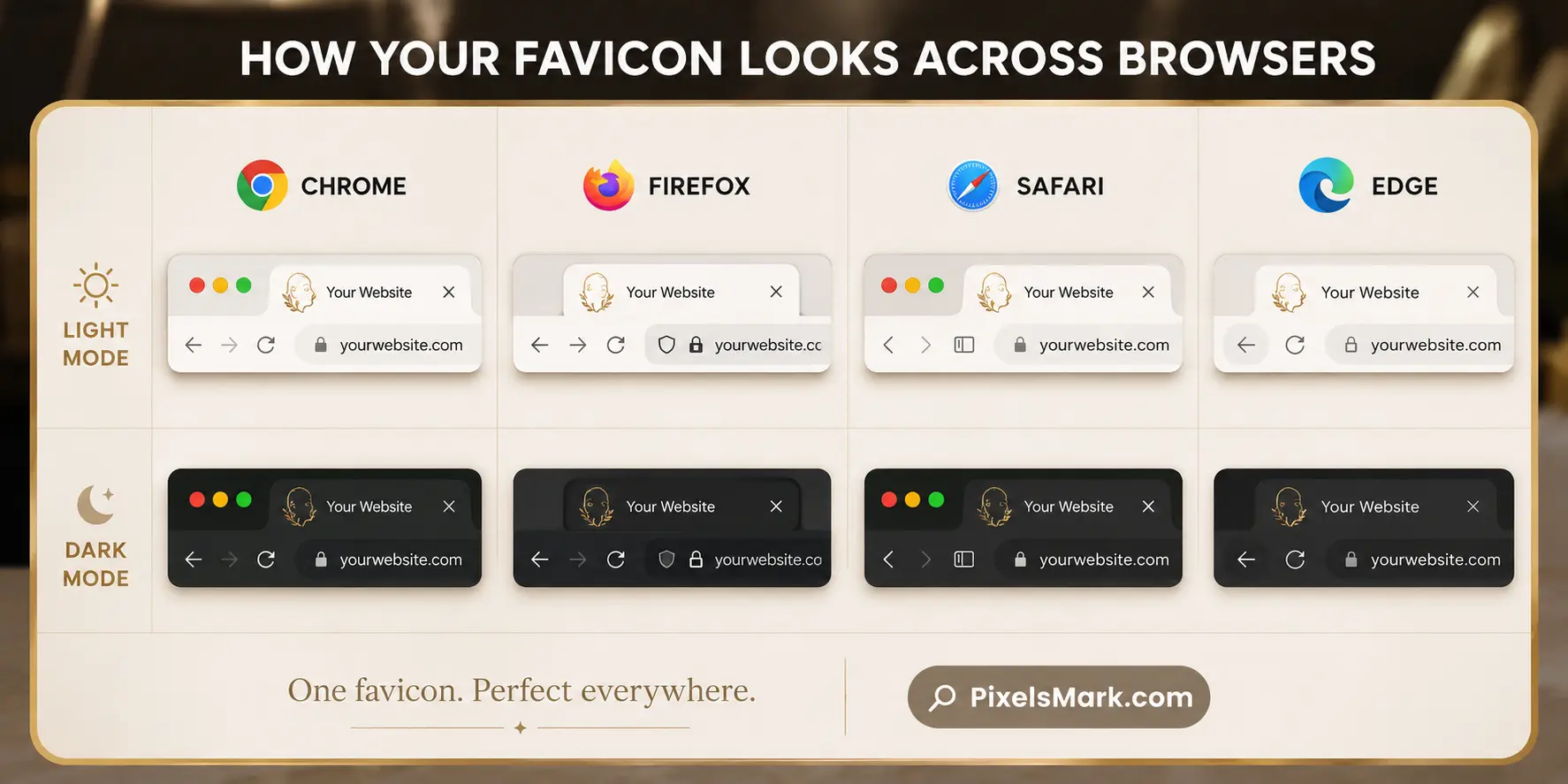
- Dark mode. Switch your operating system or browser to dark mode and open a new tab with your site. Check whether your favicon remains visible against the darker browser chrome.
- Light mode. Switch back to light mode and verify the favicon reads clearly there as well.
Our Recommendation
At PixelsMark we work with brand identity across a wide range of industries. Based on that experience, we consistently see the same pattern: the favicons that hold up best over time are the ones designed specifically for small sizes, not reduced from a full logo after the fact.
A favicon is not a miniature logo. It is a distinct piece of brand identity that happens to live at very small sizes. Treating it as its own design challenge, rather than an afterthought, produces a noticeably better result.
Here is what we recommend for most websites:
- Use one simple icon. A single mark, initial, or geometric shape communicates more clearly at 16x16 pixels than any combination of elements.
- Stick to one or two colors. Your primary brand color on a neutral or transparent background is often all you need.
- Prioritize contrast. Design for the scenario where background and icon are closest in tone, not the most favorable one.
- Leave breathing room. Leaving padding of around 10 to 15 percent on each side gives the mark visual space to read cleanly.
- Test at 16x16 pixels before you finalize anything. In an actual browser tab. That is the only test that matters for a browser favicon.
If you are starting from scratch, generate your logo first using the PixelsMark AI Logo Maker, then use the simplified mark from your logo as the basis for your favicon.
Frequently Asked Questions
How do I create a favicon for my website?
Upload a square PNG at 512x512 pixels to a favicon generator. The generator produces all required files and HTML code. Place the files in your site's root directory and paste the code into your HTML head section. WordPress, Shopify, Webflow, Wix, and Squarespace all have a built-in favicon upload field that handles the code automatically.
What size should a favicon be?
The browser tab favicon displays at 16x16 pixels, but you need to provide multiple sizes. Upload a 512x512 source image and use a generator to produce the full set: 16x16 and 32x32 in the ICO file, 180x180 for iOS, and 192x192 and 512x512 for Android and PWA.
What is the best favicon format in 2026?
Use all three: an SVG for modern browsers, an ICO as a root-level fallback for legacy compatibility, and PNG files for Apple Touch Icon and web manifest references. A favicon generator produces all three from a single upload.
Why is my favicon not showing up?
Browser caching is almost always the cause. Open an incognito or private browsing window to see the current state without cache. If it shows there, clear your browser cache or perform a hard reload with Ctrl+Shift+R on Windows or Cmd+Shift+R on Mac.
Can I use my logo as a favicon?
If your logo is a simple mark or initial, yes. If it contains detailed text, multiple elements, or fine linework, you will need a simplified version. A favicon must communicate clearly at 16x16 pixels. Test your logo at that size before finalizing.
Does a favicon affect SEO?
Not directly as a ranking factor. It does affect how your site appears in Google's mobile search results, where a favicon is displayed beside your URL. A missing favicon produces a generic icon that makes your listing look less authoritative than competitors who have one set up.
Why is my favicon not showing in Google search results?
Google caches favicons separately from browsers and updates on its own schedule. Submit your sitemap in Google Search Console and request indexing for your homepage. Google typically processes the update within a few days to a few weeks.
How do I add a favicon to WordPress?
Go to Appearance → Customize → Site Identity and upload your image in the Site Icon field. WordPress handles resizing and HTML automatically. Upload a square PNG at 512x512 pixels or larger.
Can a favicon have a transparent background?
Yes, for browser tabs and most digital uses. PNG and SVG both support transparency, which lets the browser chrome show through. The one exception is the Apple Touch Icon at 180x180 pixels. iOS does not support transparency for home screen icons, so this file should use a solid background color rather than a transparent one.
Do I need different favicons for dark mode?
Not necessarily, but it is worth considering. If your favicon uses a dark icon on a transparent background, it can disappear against dark mode browser chrome. The most effective solution is an SVG favicon with a prefers-color-scheme media query, which lets a single SVG file switch automatically between a light and dark version based on the user's system setting.
AI Summary
- A favicon is the small square icon that appears in browser tabs, bookmarks, Google search results, and mobile home screen shortcuts. Every website needs one.
- The complete 2026 favicon setup requires three file types: SVG for modern browsers, ICO for legacy fallback, and PNG for iOS and Android. A favicon generator produces all of them from a single upload.
- Always upload a square source image at 512x512 pixels or larger. Starting large and scaling down produces sharp results at every required size.
- Preview your favicon at actual 16x16 pixel size in a real browser tab before publishing. Designs that look clear in a preview tool often become unreadable at the size used in browser tabs.
- WordPress, Shopify, Webflow, Wix, and Squarespace all have a built-in favicon upload field. No manual HTML editing is needed on these platforms.
- If your favicon is not showing after an update, the browser is almost always serving a cached version. Check in incognito mode or perform a hard reload to see the current state.
- Google displays favicons in mobile search results beside your URL. Google updates its cached favicon within a few days to a few weeks after you make a change.
Related Articles
- What Is a Favicon? Meaning, Examples, Sizes and Formats
- PNG vs SVG vs JPG Guide
- PixelsMark Favicon Generator
- PixelsMark AI Logo Maker
Create Your Favicon Now
Upload your logo once and the PixelsMark Favicon Generator instantly produces everything your website needs:
- ICO with embedded 16x16, 32x32, and 48x48 sizes for browser tab display and legacy browser fallback
- SVG for modern browsers with optional dark mode support
- PNG in multiple sizes for named HTML references
- Apple Touch Icon at 180x180 pixels for iOS home screen shortcuts
- Android Chrome Icons at 192x192 and 512x512 pixels for Android home screens and PWA install prompts
- Web Manifest file ready to upload directly to your site
- Ready-to-use HTML code to paste into your head section, pre-filled with the correct file references
No account required. No watermarks. No file size limits. Processing runs entirely in your browser.
No Account Required • No Watermarks • All Formats Included